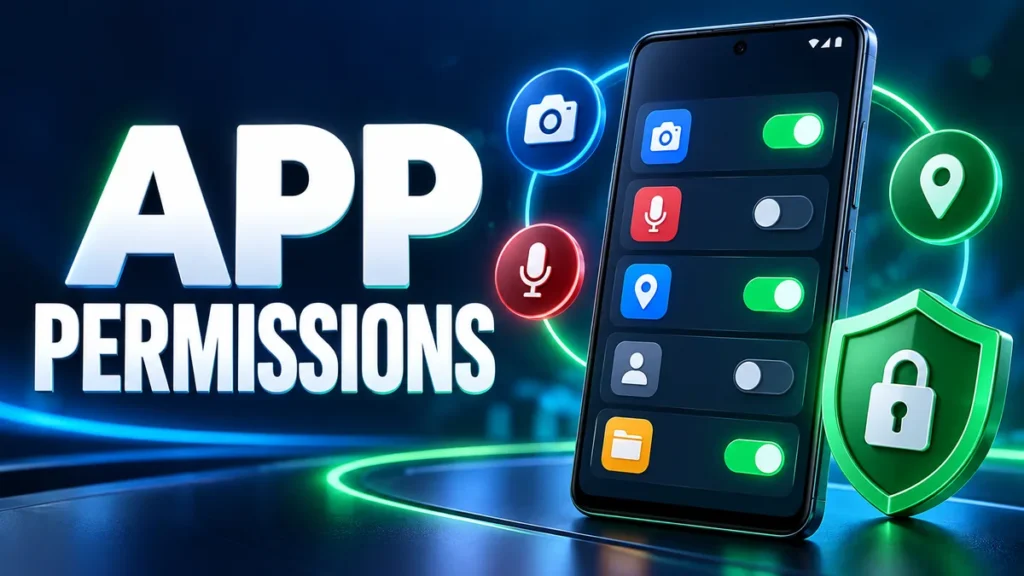
Every Android app asks for permissions: to use your camera, read files, know your location or show notifications. Most requests are reasonable, but a few can give an app far more power than it needs. Understanding them is the single best thing you can do for your privacy. Here is what each important permission means and when to say yes.
How permissions work today
Since Android 6, apps must ask for sensitive permissions while you use them. Since Android 11 you can choose Only this time, and Android automatically removes permissions from apps you have not opened for months. You can review everything in Settings > Security and privacy > Privacy > Permission manager.
Everyday permissions
Camera and microphone
Needed by camera, video call, scanner and editing apps. Allow only while using the app. Android shows a green dot in the corner whenever either is in use.
Location
Maps, ride and delivery apps need it. Prefer approximate location for weather and news apps. Give Allow all the time only to apps that truly need background location, like fitness trackers.
Photos, videos and files
On Android 13 and later, apps ask separately for photos/videos and music. On Android 14 you can select only specific photos, which is ideal for apps you use once.
Notifications
Since Android 13, apps must ask to send notifications. Say no to apps that only use them for promotions.
Sensitive permissions: be careful
Contacts and call logs
Fine for dialers and messaging apps, suspicious for games, wallpapers or photo editors.
SMS
Only your default messaging app and a few banking or verification apps need it. An unknown app requesting SMS could read one-time passwords.
Phone
Lets an app read your phone state and sometimes make calls. Caller-ID apps such as Truecaller need it; most other apps do not.
Special access: the most powerful permissions
These are not shown in the normal permission pop-up. You find them in Settings > Apps > Special app access.
- Accessibility: the app can read everything on your screen and tap buttons for you. Only password managers, launchers and genuine accessibility tools should have it. Malware loves this permission.
- Display over other apps: lets an app draw on top of others. Chat heads and screen recorders use it, but it can also be used to show fake login screens.
- Device admin apps: can lock or wipe the phone and block uninstallation. Only Find My Device and work apps should have it.
- Install unknown apps: allows an app to install other apps. Keep it off except for your browser or file manager while sideloading. See our guide to this setting.
- Notification access: the app can read all notifications, including OTP messages. Grant it only to smartwatch companion apps and similar.
A simple decision rule
Ask yourself: would the app’s main feature break without this permission? If not, deny it. You can always grant it later from settings if something stops working.
How to review permissions in two minutes
- Open Permission manager.
- Tap SMS, Contacts and Location and remove any app that does not need them.
- Open Special app access > Accessibility and check every app listed there.
- Repeat every few months.
Frequently asked questions
Will an app stop working if I deny a permission?
Only the feature that needs it. A photo editor without location access still edits photos; it just cannot tag where they were taken.
Why does an app ask for so many permissions?
Sometimes for legitimate optional features, sometimes for advertising and tracking. Deny what you do not need.
Are modified apps more dangerous with permissions?
Yes. Pay extra attention to what a MOD APK requests. Read more in What are MOD APKs.


No Comments
Comment on