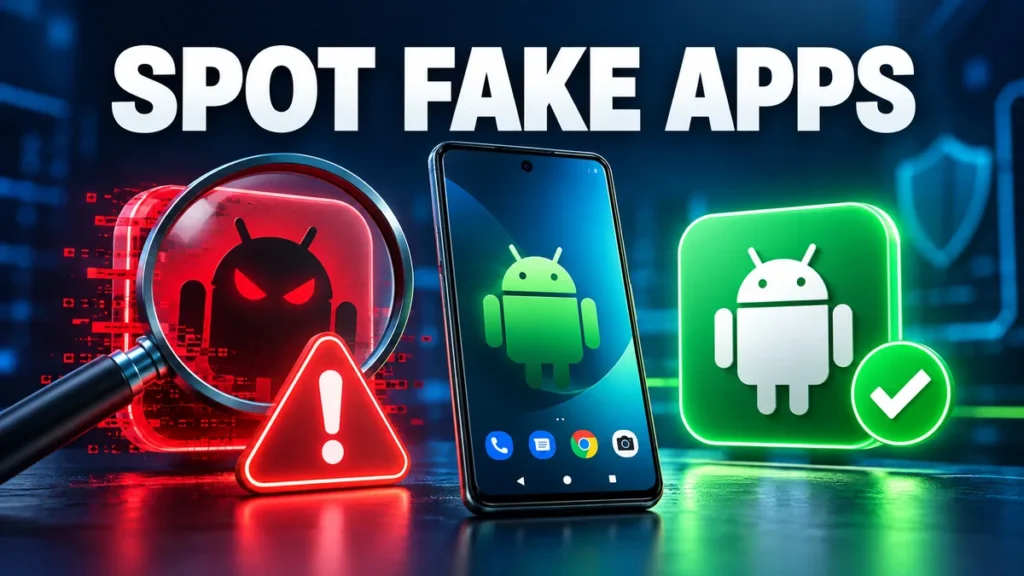
Fake apps borrow the name and icon of popular apps such as WhatsApp, CapCut or a bank, hoping you will not look closely. Some only flood your phone with ads; others steal passwords or subscribe you to paid services. They appear on websites, in chat forwards and occasionally even in official stores. These are the signs that give them away.
10 warning signs of a fake app
- The developer name is wrong. WhatsApp is made by WhatsApp LLC, CapCut by Bytedance. A different or random developer name is the biggest red flag.
- Spelling mistakes in the name, description or screenshots (“Whatsap Plus Pro Free”).
- Too good to be true promises: “free unlimited diamonds”, “see who viewed your profile”, “double your RAM”.
- Very few downloads for an app that claims to be famous, or many reviews posted on the same days.
- Reviews complaining about ads, crashes or “this is not the real app”.
- Excessive permissions: a wallpaper app asking for SMS, contacts or Accessibility.
- Tiny file size compared to the real app, typical of “installer” or “downloader” fakes.
- The icon disappears after installing, so you cannot easily find and uninstall it.
- It asks you to install another app or to enter your login for Google, Facebook or a bank immediately.
- It came from a chat forward or SMS link rather than a site you chose.
How to verify a real app
- Search from the official website. Big companies link to their own Play Store page.
- Check the package name. It appears in the Play Store page URL (for example
com.whatsapp) and on GrabModApk app pages under App info. Fakes use similar but different names. - Compare the signature if you are updating an existing app. A real update installs over the old one; a fake triggers a conflict.
- Scan the file with VirusTotal before installing. See how to check if an APK is safe.
The most common types of fake apps
- Cleaner and booster apps that only show ads.
- Fake versions of famous apps (“WhatsApp Gold”, “Instagram Pro”) that steal accounts.
- Loan and investment apps that collect contacts and harass users.
- Fake VPNs that collect browsing data.
- “Free premium” game hacks that require you to complete surveys or install other apps.
Already installed a suspicious app?
- Turn on airplane mode.
- Check Settings > Security > Device admin apps and remove the app’s admin rights.
- Check Settings > Accessibility and turn off its service.
- Uninstall it. If the button is greyed out, restart in safe mode and try again.
- Run a Play Protect scan.
- Change the passwords of accounts you used on the phone, from another device, and enable two-step verification.
- Check your bank and mobile balance for unknown charges.
Good habits that prevent problems
- Install apps only from sources you have used before.
- Read the permissions before tapping Allow. Our permissions guide explains each one.
- Keep Android and Play Protect up to date.
- Never install apps sent by unknown contacts.
Frequently asked questions
Can fake apps be on the Play Store?
Yes, occasionally, although Google removes them. Always check the developer name and reviews.
Will a factory reset remove malware?
Yes, a factory reset removes installed apps, including malware. Back up personal data first, but do not restore the suspicious app.
Is an antivirus app necessary?
Play Protect covers most threats. A reputable second scanner can help, but careful habits matter most.
No Comments
Comment on