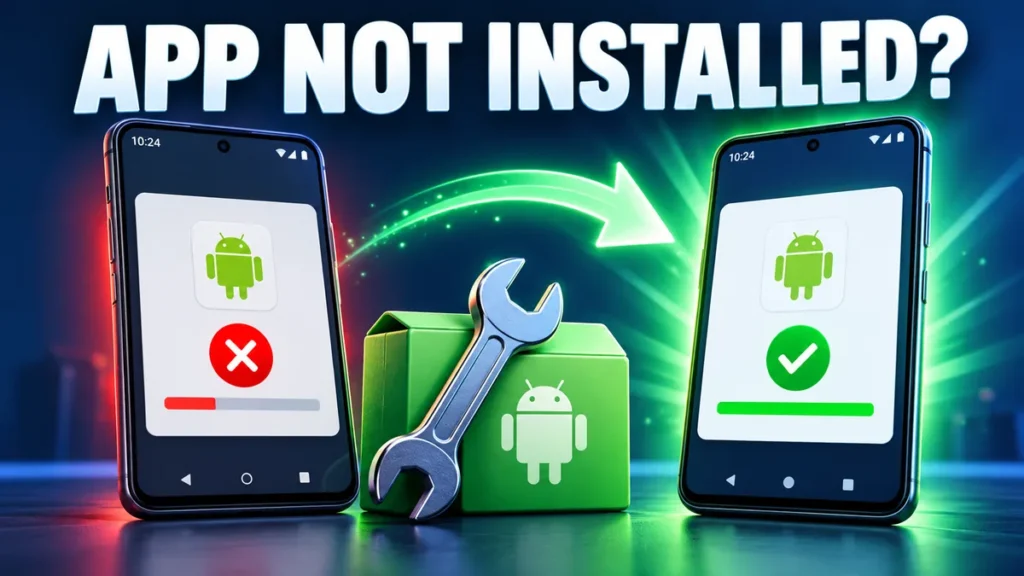
You downloaded an APK, tapped Install, waited a few seconds, and Android simply said “App not installed”. No reason, no code. It is one of the most common Android errors, and the good news is that it almost always has one of a handful of causes. Work through the fixes below in order and you will usually solve it in a few minutes.
Why the “App not installed” error happens
Android refuses to install an app when something about the file does not match your phone. The most common reasons are:
- An older version of the same app is installed with a different signature.
- You are trying to install an older version over a newer one.
- There is not enough free storage.
- The APK is incomplete or corrupted.
- The app was built for a different processor type (for example 64-bit only).
- Google Play Protect blocked the installation.
Fix 1: Uninstall the existing version first
This solves the error in most cases. Every Android app is signed by its developer. If the version on your phone came from the Play Store and your APK came from another source, the signatures can differ, and Android will not let one replace the other.
- Back up anything important inside the app (log in to your account, export projects, save game progress to the cloud).
- Go to Settings > Apps, find the app and tap Uninstall.
- Install the APK again.
Fix 2: Do not install an older version over a newer one
Android blocks downgrades by default. If you need an older version, you must uninstall the newer one first. Our guide on downgrading apps explains how to do this without losing more data than necessary.
Fix 3: Free up storage
Installation needs space for both the APK and the unpacked app, often twice the file size or more. Check Settings > Storage. If you have less than 1 to 2 GB free, clear some space and retry. Our storage guide shows quick ways to do it.
Fix 4: Download the APK again
An interrupted download produces a broken file that looks normal but cannot be installed. Delete the APK from your Downloads folder, switch to a stable Wi-Fi connection and download it again. Compare the file size with the size shown on the download page.
Fix 5: Check the Android version and processor type
Look for the “Requires Android” value on the app page and compare it with Settings > About phone. Also note that many newer apps are 64-bit only. Some budget phones run a 32-bit version of Android even with a 64-bit processor, and those phones cannot install 64-bit-only apps. In that case look for an older version of the app that still supports 32-bit (armeabi-v7a).
Fix 6: Turn off Play Protect temporarily (only for trusted files)
Play Protect can silently block apps it does not recognise. If you are certain the file is genuine:
- Open the Play Store, tap your profile picture and choose Play Protect.
- Tap the settings icon and turn off Scan apps with Play Protect.
- Install the APK, then turn Play Protect back on immediately.
Never disable Play Protect for a file you are not sure about. If it flags an app as harmful, believe it.
Fix 7: Use a different installer
Sometimes the browser’s built-in opener fails. Open the APK from the Files by Google app or your phone’s own file manager instead. Remember to allow that app under Install unknown apps.
Fix 8: Install split APK bundles with the right tool
If your file ends in .xapk, .apks or .apkm, it is not a normal APK and Android cannot install it by tapping it. Use SAI (Split APKs Installer) or the matching installer app. See APK vs XAPK vs APKS.
Fix 9: Restart and clear the Package Installer cache
A simple restart clears stuck install sessions. If that does not help, go to Settings > Apps, show system apps, open Package installer and tap Storage > Clear cache. Then try again.
Brand-specific notes
- Xiaomi / Redmi / POCO (MIUI, HyperOS): turn off MIUI optimization only if installs keep failing, and allow the “Security” app’s scan to finish before installing.
- Samsung: Auto Blocker (One UI 6 and later) blocks apps from unknown sources. Turn it off under Settings > Security and privacy > Auto Blocker while installing, then turn it back on.
- Vivo / Oppo / Realme: these phones may ask for your account password before installing an APK. That is normal.
Frequently asked questions
Why does the error appear only for some apps?
Because the cause is usually specific to that app: a signature conflict, a version downgrade or an unsupported processor type.
Will uninstalling the old app delete my data?
Yes, local app data is removed. Data saved to an account or cloud backup (WhatsApp backups, Google account sync, game cloud saves) can be restored afterwards.
Is it safe to turn off Play Protect?
Only briefly, and only for an app you trust. Turn it back on right after the install.
No Comments
Comment on