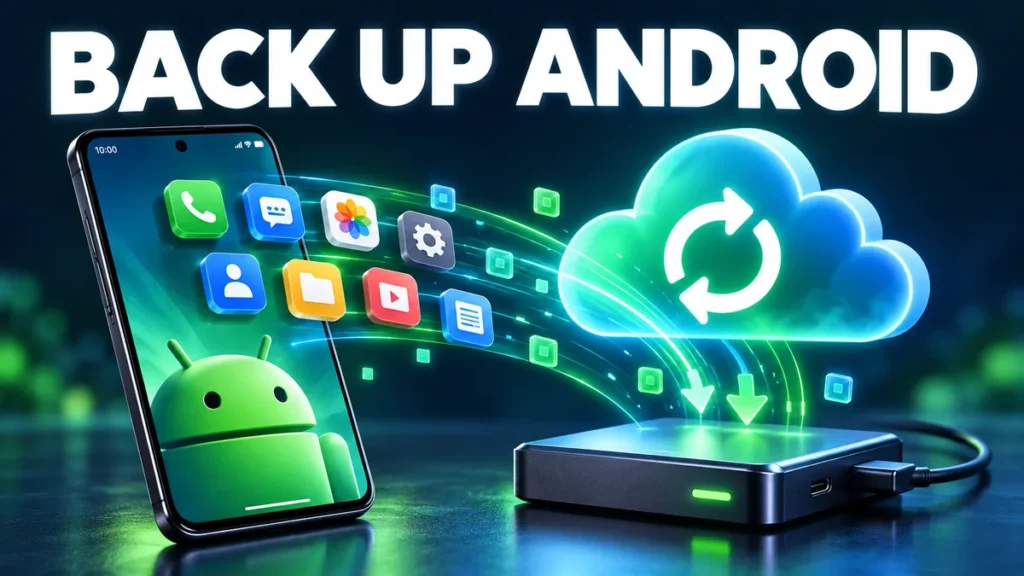
Losing a phone, resetting it or reinstalling an app can wipe out months of chats, game progress and settings. A good backup takes a few minutes to set up and runs by itself afterwards. Here is how to back up everything that matters on Android.
What Android backs up automatically
With Google backup turned on, Android saves:
- The list of installed apps (they reinstall on a new phone).
- Data of apps that support Android backup (many apps, but not all).
- Call history, contacts, SMS and MMS.
- Device settings such as Wi-Fi networks and wallpaper.
Turn it on in Settings > Google > Backup (or Settings > System > Backup) and make sure Backup by Google One is enabled. Tap Back up now once to start.
Photos and videos
Google Photos backs up your gallery automatically. Open Google Photos, tap your profile picture and turn on Backup. Choose “Storage saver” if your free cloud space is limited. OneDrive, Dropbox and Samsung Cloud are alternatives.
WhatsApp chats
WhatsApp uses its own backup to Google Drive.
- Open WhatsApp > Settings > Chats > Chat backup.
- Choose your Google account and set the frequency to daily.
- Turn on Include videos only if you have enough cloud space.
- Tap Back up.
Telegram stores chats in its cloud, so you only need to log in again.
App data that is not backed up
Some apps, especially games and modified apps, do not use Android backup. Protect their data like this:
- Games: link the game to a Google Play Games, Facebook or in-game account before reinstalling.
- Editors (CapCut, InShot, KineMaster): export finished projects as video files, and enable cloud sync for drafts where available.
- Notes and to-do apps: use the app’s export option or account sync.
- Authenticator apps: use the built-in export or transfer feature. Losing these codes can lock you out of accounts.
Back up APK files of your apps
If an app is no longer available, keeping its installer is useful. Apps such as ML Manager or App Manager can extract the APK of any installed app and save it to your storage or cloud. Note that this saves the app itself, not its data.
Manual backup to a computer
Connect your phone with a USB cable, choose File transfer, and copy these folders to your computer:
DCIMandPictures(photos)DownloadandDocumentsMoviesandMusicAndroid/media/com.whatsapp(WhatsApp media on Android 11 and later)
Brand tools for switching phones
- Samsung Smart Switch: transfers almost everything, including many app data, between Samsung phones.
- Xiaomi Mi Mover, Oppo Clone Phone, Vivo EasyShare: similar tools for their brands.
- Google’s setup: when setting up a new phone, choose “Copy apps and data” and connect the old phone with a cable for the most complete transfer.
Before you reinstall or replace an app
- Log in to the app’s account and confirm sync is on.
- Run a manual backup in the app if it has one.
- Check that Google backup ran recently.
- Only then uninstall.
This matters especially when you replace an official app with a different build, as explained in our App not installed guide.
Frequently asked questions
Does Google back up all app data?
No. Only apps that support Android’s backup system, and each app is limited in size. Always check important apps individually.
How much does Google backup cost?
Device backups are free. Photos and Drive files count towards your 15 GB of free Google storage.
Can I restore a backup to a phone from another brand?
Yes. Google backup works across brands. Brand tools like Smart Switch work best between phones of the same brand.
No Comments
Comment on