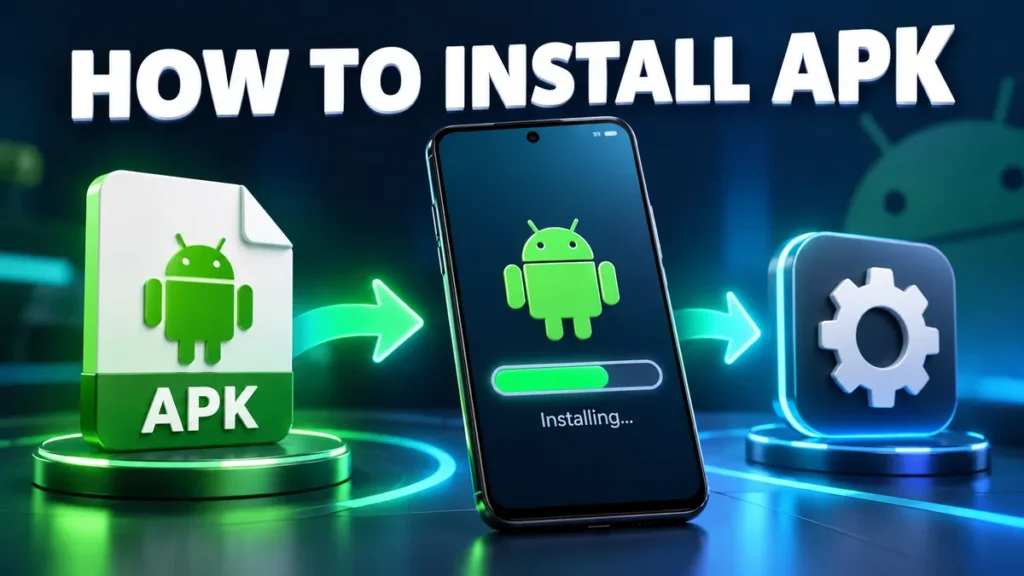
Most Android apps come from the Google Play Store, but sometimes the app you want is not there: it may be unavailable in your country, removed by the developer, or you may need an older version that works better on your phone. In those cases you install the app from an APK file. This guide shows you how to do it properly, on any modern Android phone, without putting your device at risk.
What is an APK file?
APK stands for Android Package Kit. It is the file format Android uses to install apps, much like an .exe installer on Windows. When you press “Install” in the Play Store, your phone downloads an APK (or a set of APK parts) in the background and installs it. Installing an APK yourself is called sideloading.
Sideloading is a normal Android feature, not a hack. The only thing that matters is where the file comes from, because a modified or fake APK can contain malware.
Before you start: a quick checklist
- Free storage: keep at least twice the APK size free. A 300 MB app needs room for the file and the installed app.
- Android version: check the “Requires Android” value on the download page and compare it with Settings > About phone > Android version.
- Trusted source: download from a site that shows the app version, size and update date, and that you have used before without problems.
- Backup: if you are replacing an app you already use, back up its data first (chats, saved projects, game progress).
Step 1: Download the APK file
Open the app page in your phone’s browser and tap the download button. On GrabModApk you will see the version, file size and Android requirement before the download starts, so you can confirm it is the right file. When the download finishes, your browser shows a notification and the file is saved to the Downloads folder.
If your browser warns that “this type of file can harm your device”, that is a generic warning shown for every APK. Continue only if you trust the website.
Step 2: Allow your browser or file manager to install apps
Since Android 8.0 (Oreo), there is no single “Unknown sources” switch any more. Instead, you give permission to the specific app that opens the APK, usually Chrome or your file manager.
- Tap the downloaded APK. Android shows a message like “For your security, your phone is not allowed to install unknown apps from this source.”
- Tap Settings in that message.
- Turn on Allow from this source.
- Press back. The install screen appears.
You can also do this manually: Settings > Apps > Special app access > Install unknown apps, then pick Chrome or Files and turn the switch on. The exact menu names differ a little between Samsung, Xiaomi, Vivo, Oppo and stock Android. We cover every brand in our guide on allowing unknown apps.
Step 3: Install the app
- Tap Install on the confirmation screen.
- If Google Play Protect asks to scan the app, let it scan. If it says the app is harmful, cancel the install.
- Wait for “App installed”, then tap Open.
That is it. The app now appears in your app drawer like any other app.
Step 4: Turn the permission off again
Once you are done, go back to Install unknown apps and switch the permission off for your browser. This small habit stops a malicious website from silently pushing an APK to you later.
How to install XAPK, APKS and APKM files
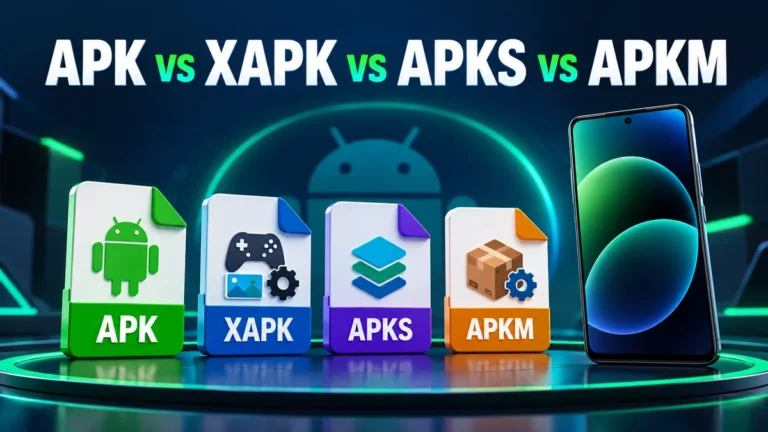
Some large apps and games are not shipped as a single APK. You may get an XAPK (APK plus game data), an APKS or an APKM bundle (split APKs). Android cannot open these files directly. You need an installer app such as SAI (Split APKs Installer) or the APKMirror Installer. Read our full explanation of APK vs XAPK vs APKS for the exact steps.
Common problems and quick fixes
- “App not installed”: usually a signature conflict with an older copy of the app, or not enough storage. Uninstall the old version (after a backup) and try again. See our full fix guide.
- “There was a problem parsing the package”: the download is incomplete or the app needs a newer Android version. Download the file again on a stable connection.
- Install button greyed out: a screen overlay (bubble chat, blue-light filter, screen recorder) is active. Close those apps and try again.
- Play Protect blocks the app: treat this as a real warning. Only continue if you are sure the file is genuine.
Is it safe to install APK files?
Installing an APK is as safe as the file itself. An unmodified APK from the original developer is exactly the same app you would get from the Play Store. The risk comes from files that were tampered with. Follow these rules:
- Download only from sites that clearly show the app’s details and update date.
- Check the permissions the app asks for after installing. A flashlight app has no reason to read your SMS.
- Scan unknown files with an antivirus app or an online scanner before opening them. Our guide on checking if an APK is safe shows how.
- Keep Google Play Protect turned on.
Frequently asked questions
Will installing an APK delete my data?
No. Installing a new app does not touch your other apps or files. Updating an existing app with an APK keeps its data, as long as the APK is signed by the same developer.
Can I update an APK app later?
Yes. Download the newer APK and install it over the old one. If the original came from the Play Store and the APK from somewhere else, the signatures may differ and you will have to uninstall first.
Do I need root access to install APK files?
No. Every Android phone can install APK files without root. Root is only needed for system-level changes.
Why does Android keep asking for permission?
Android asks per app on purpose, so that only the apps you choose can install other apps. Allow it once for your browser or file manager and the prompt goes away.
No Comments
Comment on